Quick takeaway
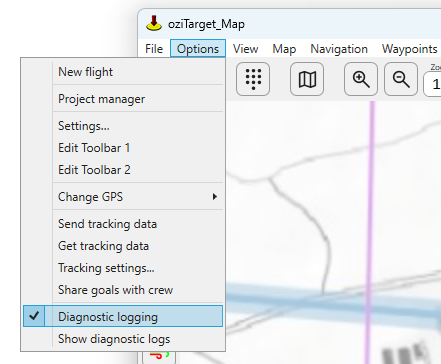
- Turn on Options → Diagnostic logging before you reproduce the problem (if the app still runs).
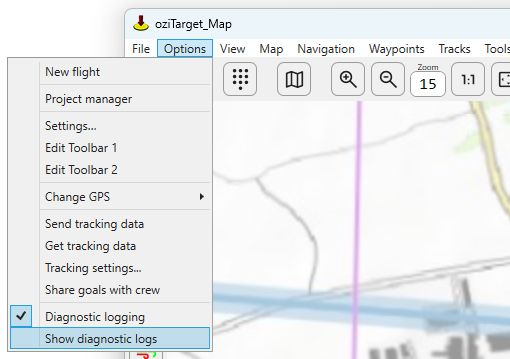
- Open the log folder with Options → Show diagnostic logs.
-
Attach the newest
perf-*.csvand any matchingcrash-*.txtfiles when you email support.
Two kinds of log
- ✓ Performance / diagnostic CSV
(
perf-YYYYMMDD-HHMMSS.csv— written only while Diagnostic logging is checked. Samples map redraw rate, GPS/NMEA activity, open tools, and error lines about once a second. - ✓ Crash report
crash-YYYYMMDD-HHMMSS-….txt— written automatically if the app hits a last-chance exception and is about to close. You do not need to turn logging on for these files.
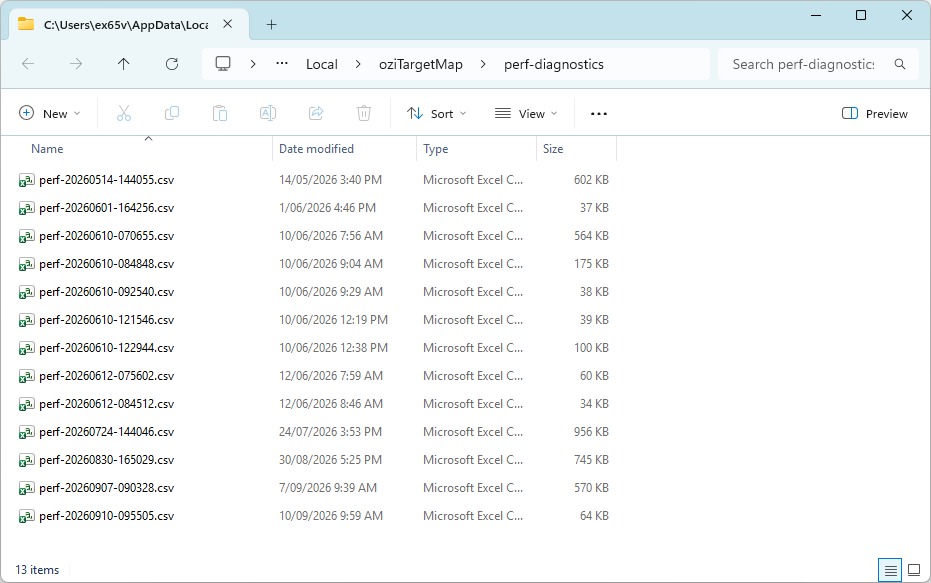
Both file types live in the same folder:
%LOCALAPPDATA%\oziTargetMap\perf-diagnostics\.
1. Turn on diagnostic logging
In oziTarget Map, open the Options menu and check Diagnostic logging. Leave it on while you reproduce the issue (open the same tools, start navigation, load the same flight, and so on). Uncheck it when you are finished so the CSV stops growing.
The same Options menu has Show diagnostic logs, which opens the log folder in Windows Explorer.
Tip: you can also start and stop logging from the Performance diagnostics window (when available) with Start logging / Stop logging and Open log folder. Most pilots only need the Options menu items above.
2. Find the log folder
Choose Options → Show diagnostic logs to open Explorer at the diagnostics folder.
3. Crash reports
If the app closes on an unhandled error, it tries to write a
crash-….txt report first and may show a short message
with the file path. Those reports land in the same
perf-diagnostics
folder as the CSV logs.
Native faults deep in graphics drivers (rare) may not produce a crash
file — in that case Windows Event Viewer (Application log) is the
fallback, but for almost all managed crashes the
crash-*.txt
file is enough.
4. What to send when reporting a problem
Email the newest relevant files plus a short description of:
- ✓ What you were doing (tool, map, Start Nav / Playback, Tracking, and so on)
- ✓ What went wrong (freeze, wrong result, unexpected close)
- ✓ App version (Help → About) and PC type (x64 or ARM)
- ✓
Attach: the
perf-*.csvfrom the session you reproduced, and anycrash-*.txtfrom the same time
Send to sales@ozitarget.com.
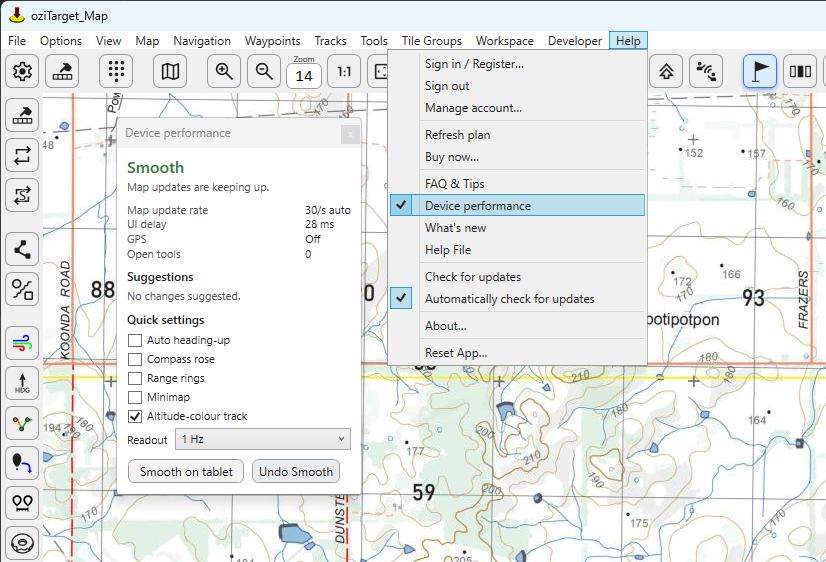
Related: Device performance
Help → Device performance is a separate live panel that scores how the machine is coping (Smooth / OK / Lagging) and can apply lighter map settings. It does not replace the CSV diagnostic log — use Device performance to tune a slow tablet, and Diagnostic logging when you need a file for support.